Why We Decided to Update the Personal Account
Travelpayouts’ personal account hasn’t been updated for five years until now. During this time, the company has grown from a regular Aviasales affiliate program to a large travel affiliate network. The previous account version wasn’t meeting our affiliates’ needs and new business requirements anymore. Today, our network includes 20+ advertisers, and their number is expected to grow. A new personal account allows you to get detailed statistics and make it more convenient to work with each advertiser. The new personal account version was launched on September 23, and that was just the beginning, as it will constantly be updated. We will be analyzing your feedback to adjust the personal account to our vision and your needs. In this review, you will learn where to look for statistics and tools in the new dashboard to quickly find appropriate data.Navigation
Sidebar
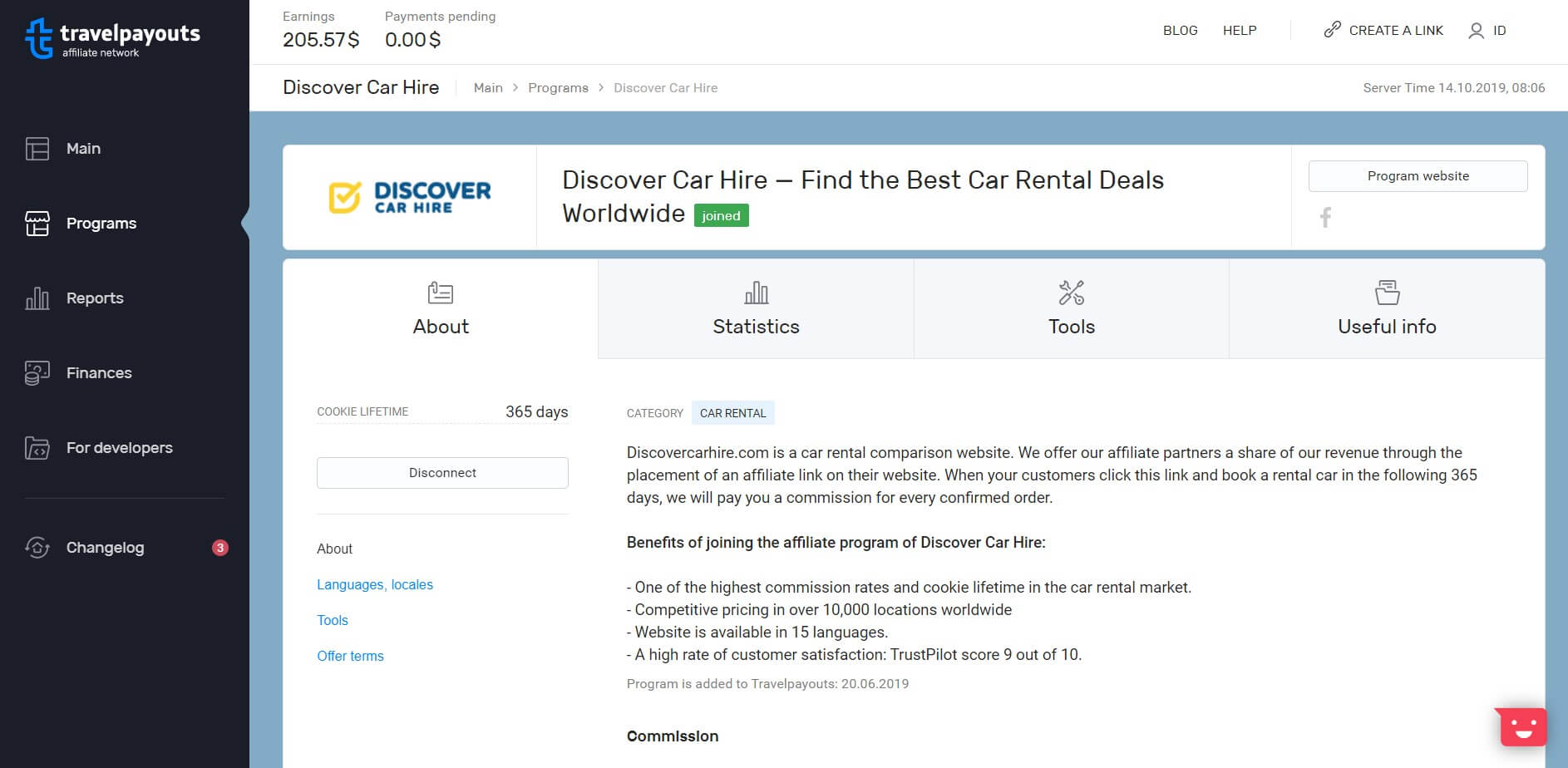
The sidebar gives access to all sections. We renamed “Offers” to “Programs,” as it better reflects the concept, and will use it in all sections. The “Programs” button on the left-hand sidebar will direct you to the affiliate offers catalog. The “Programs” section doesn’t have the “Summary” subsection anymore. Statistics on offers are now available in a separate subsection “Reports” or on the corresponding offer page. The sidebar also includes the “Finances” section.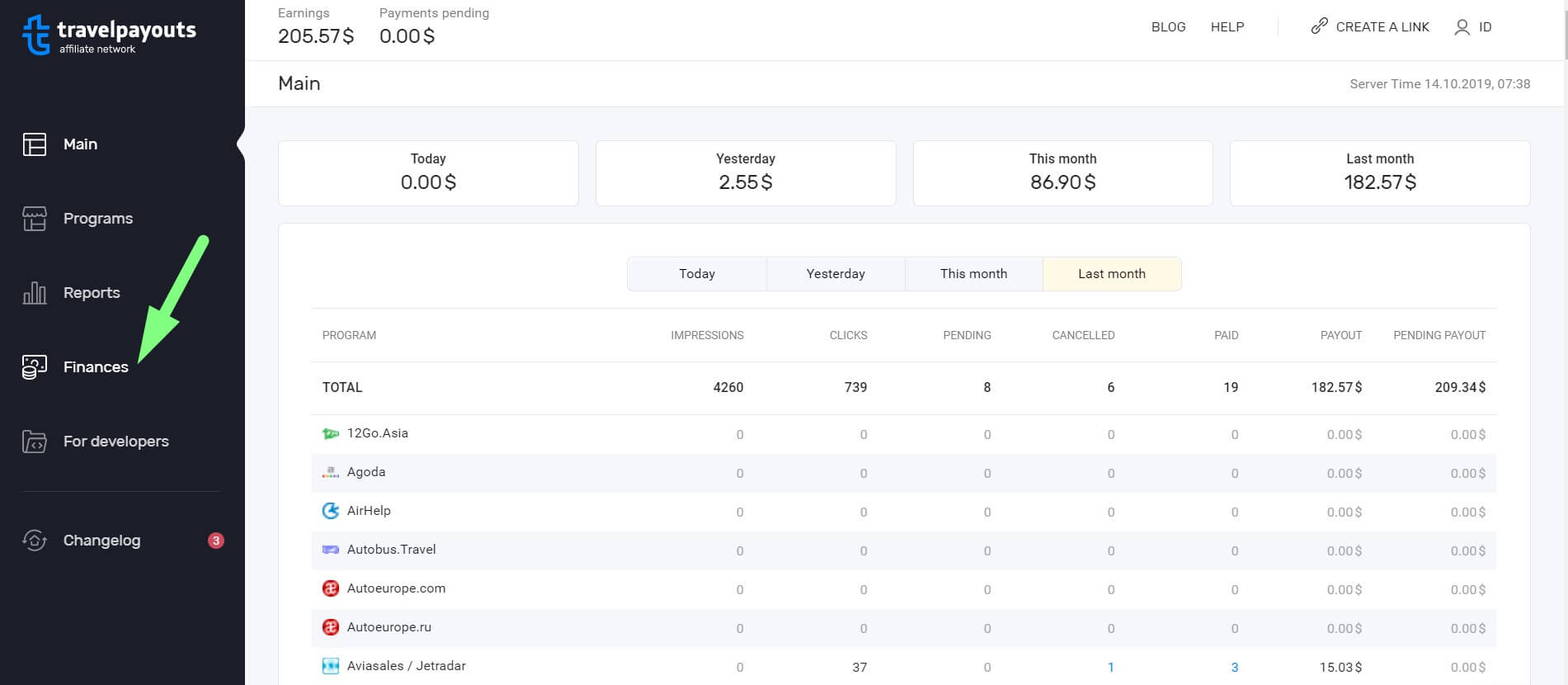
Top Menu
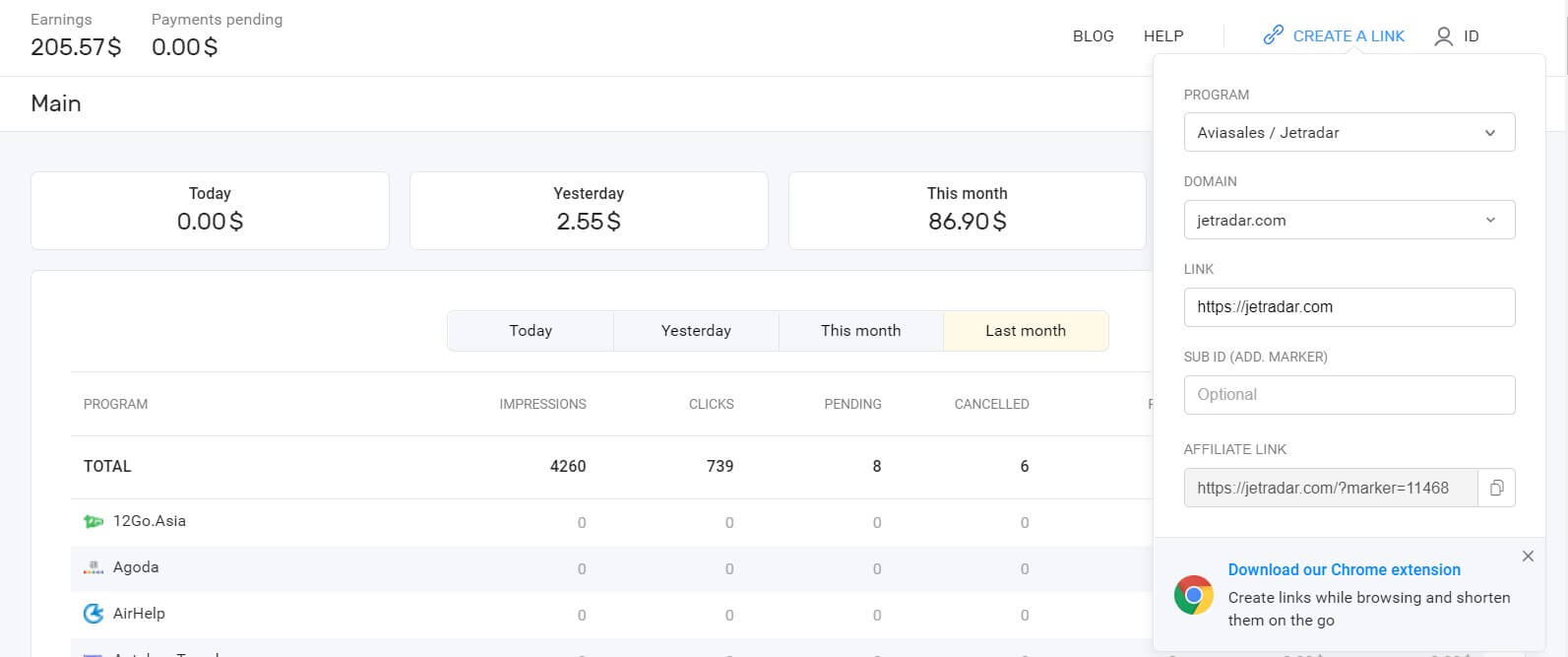
The top menu remains the same for every section of the personal account. It shows your balance and pending income. In the right upper corner, you can find links to our blog and knowledge base. When hovering over the ID icon, you’ll see a dropdown menu that will direct you to your profile settings.
The Home Page of the Personal Account
After signing in, you’ll be directed to the home page of a personal account. It shows your income for today, last month and next month. You can see general statistics in widgets on the top menu and offer-specific numbers in the table.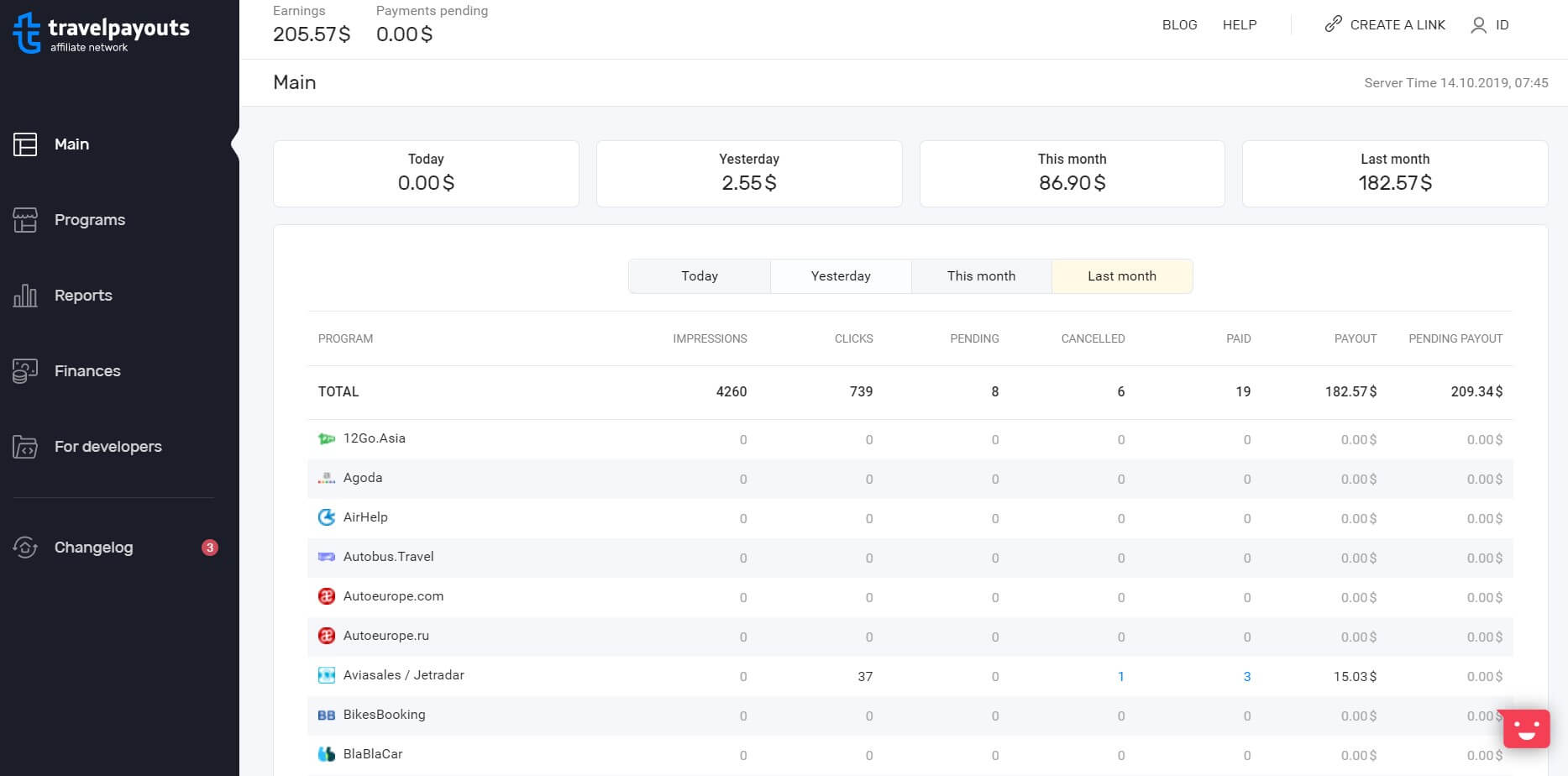
Income Statistics on Home Page
Statistics include all the offers that you participate in. Even if you have signed up a long time ago but aren’t active now, your campaigns will still be shown, but without revenue.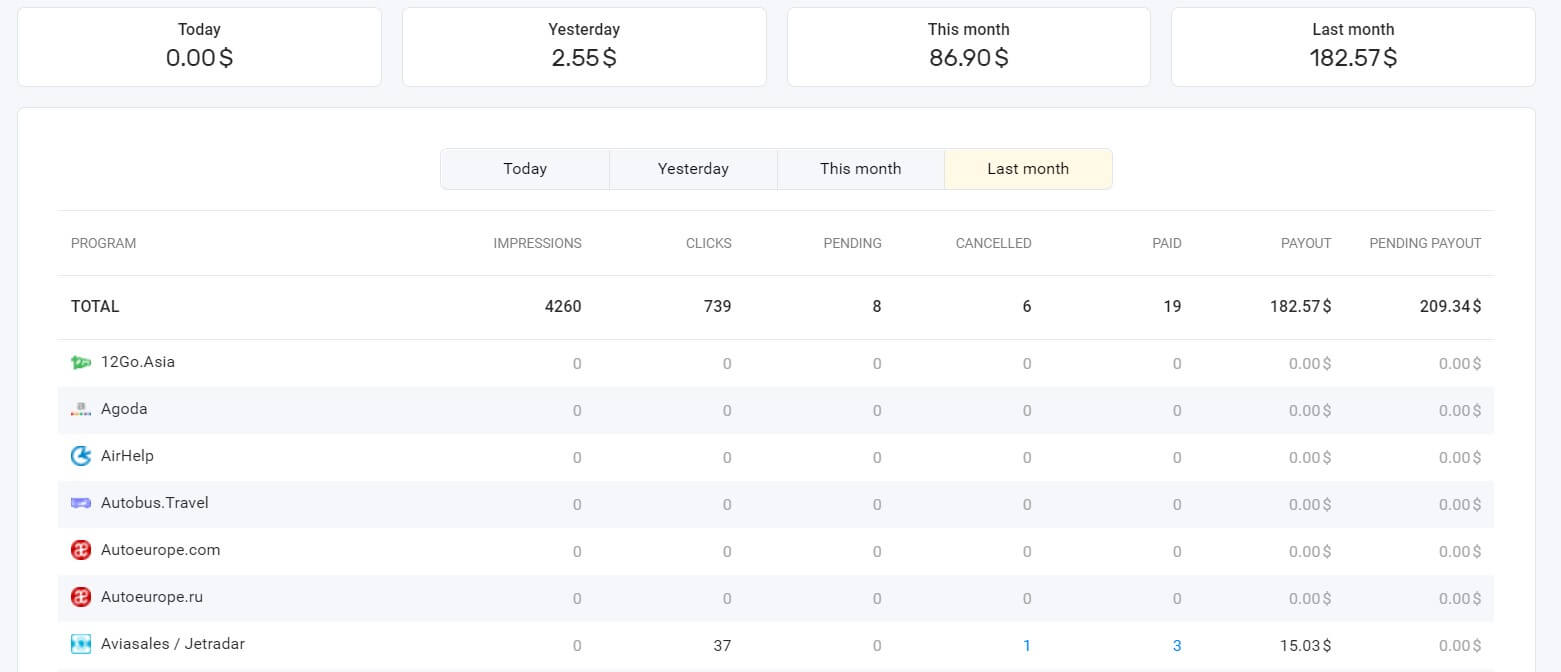
Statistics Widget for the Last 30 Days
Below the statistics table, you can see the programs’ cards. These are widgets that are able to quickly show statistics on searches, payments and income for the last 30 days. It is possible to only show relevant widgets. To do so, click on the settings icon in the left corner.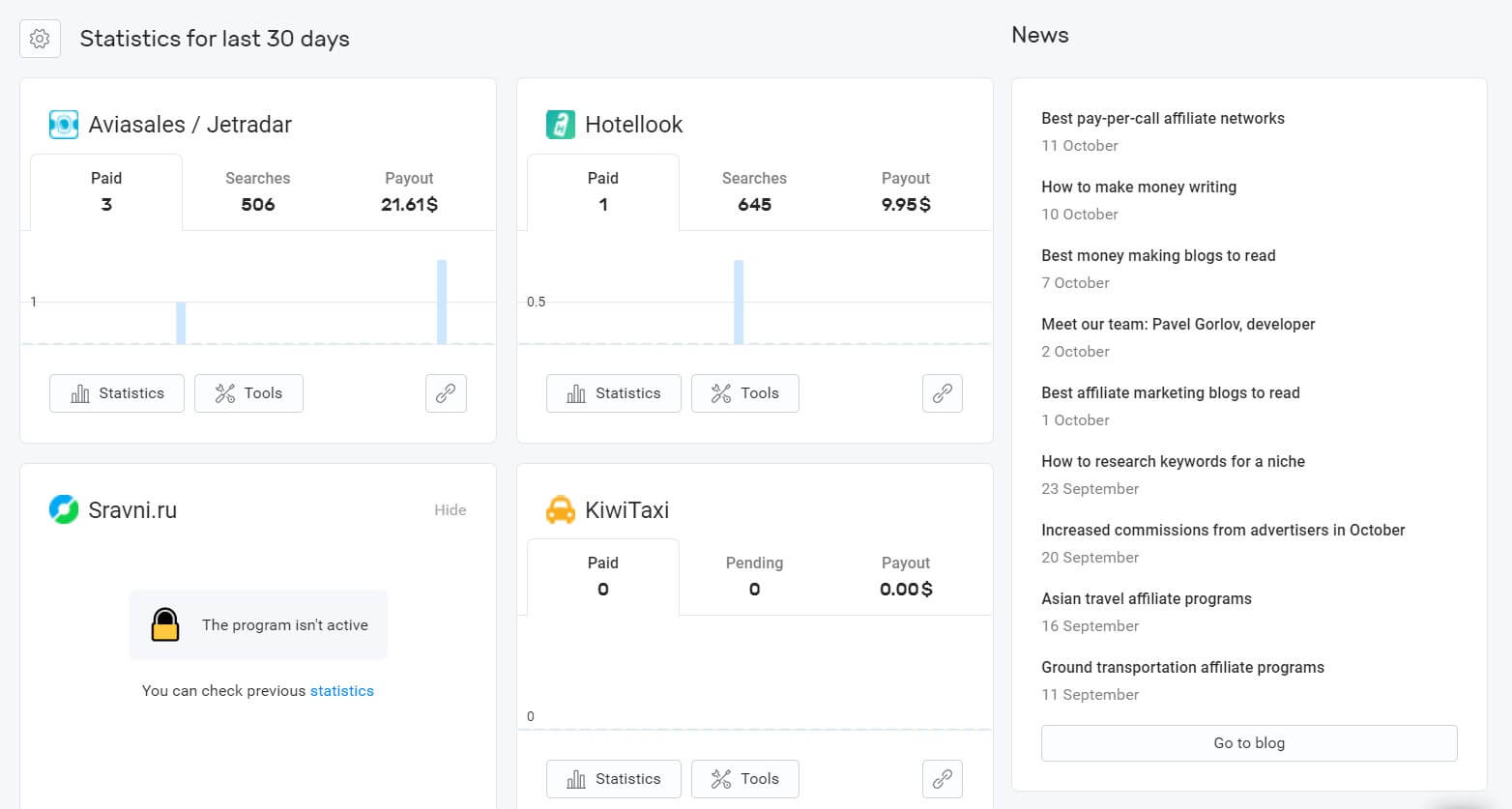
“Finances” Section
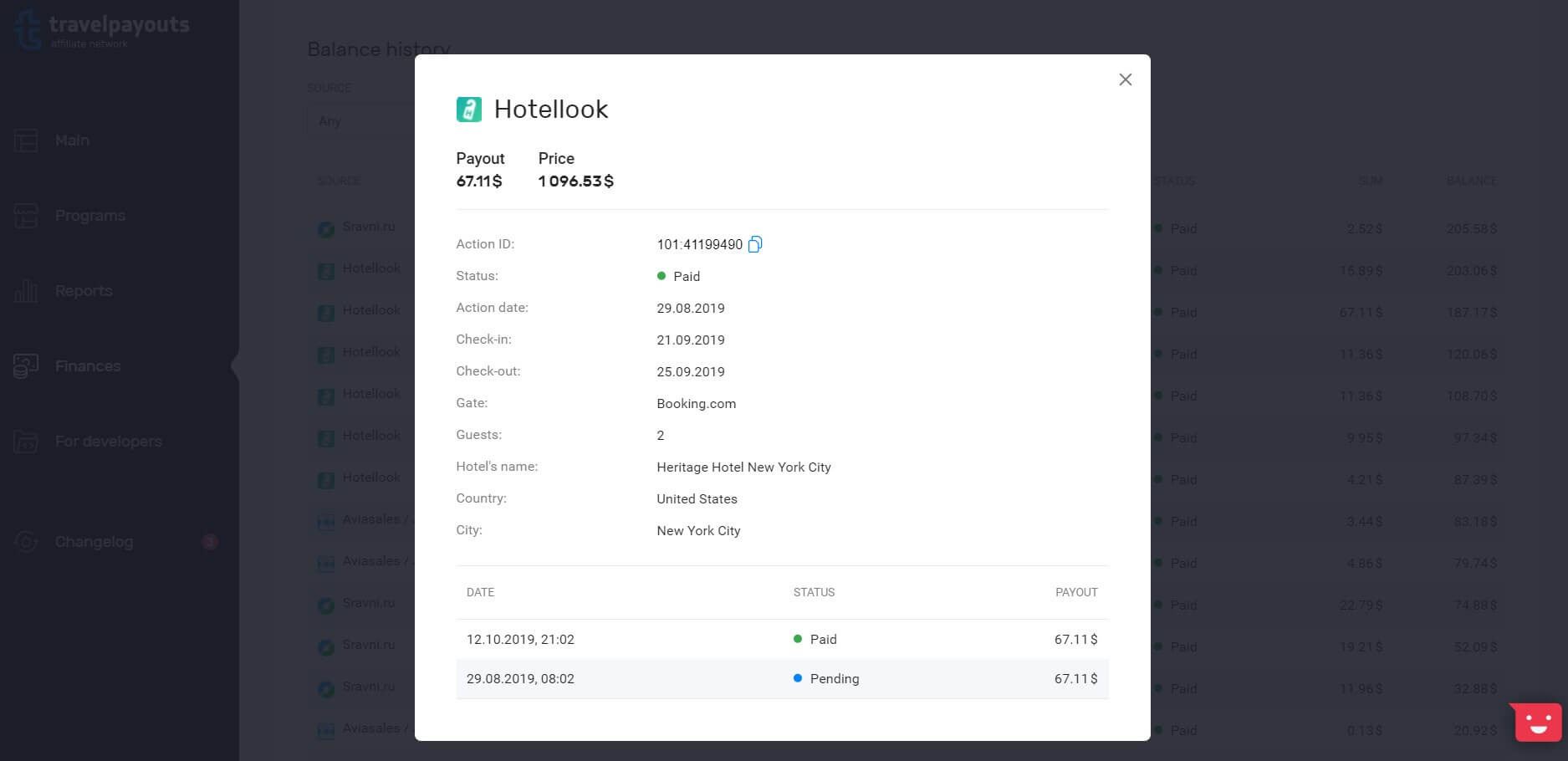
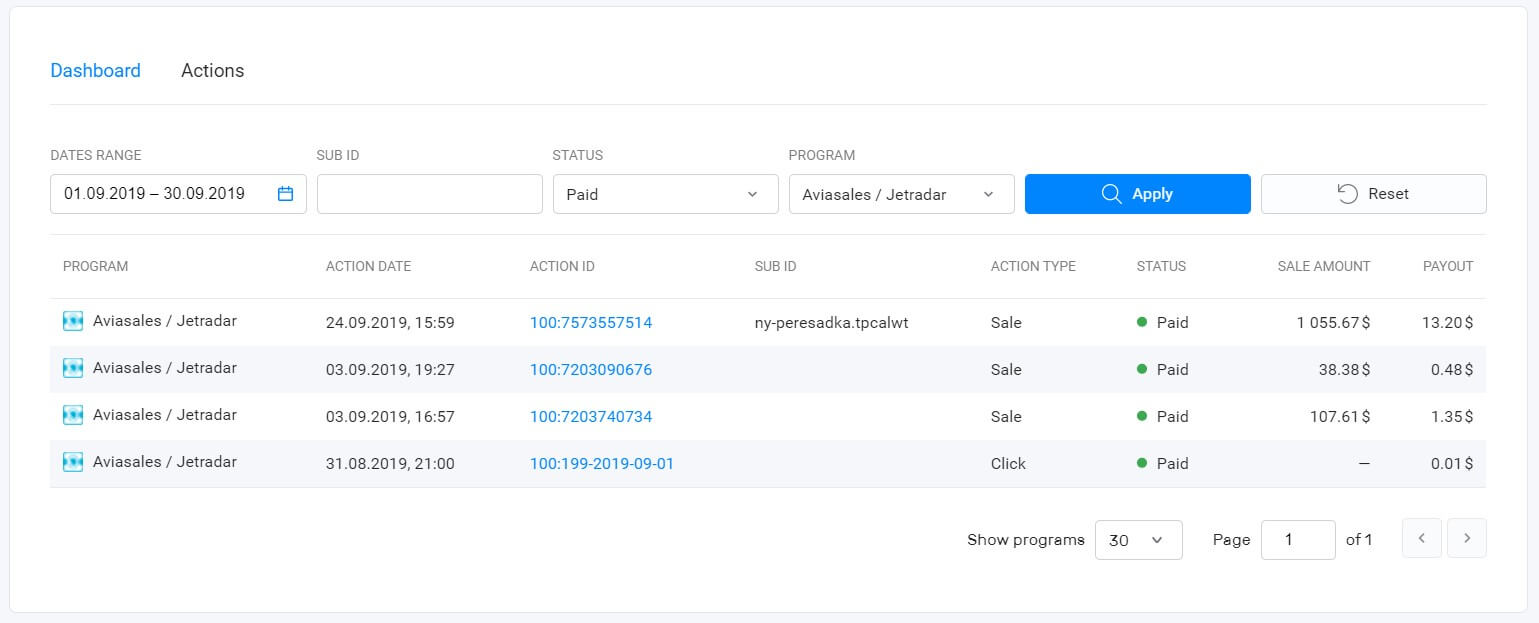
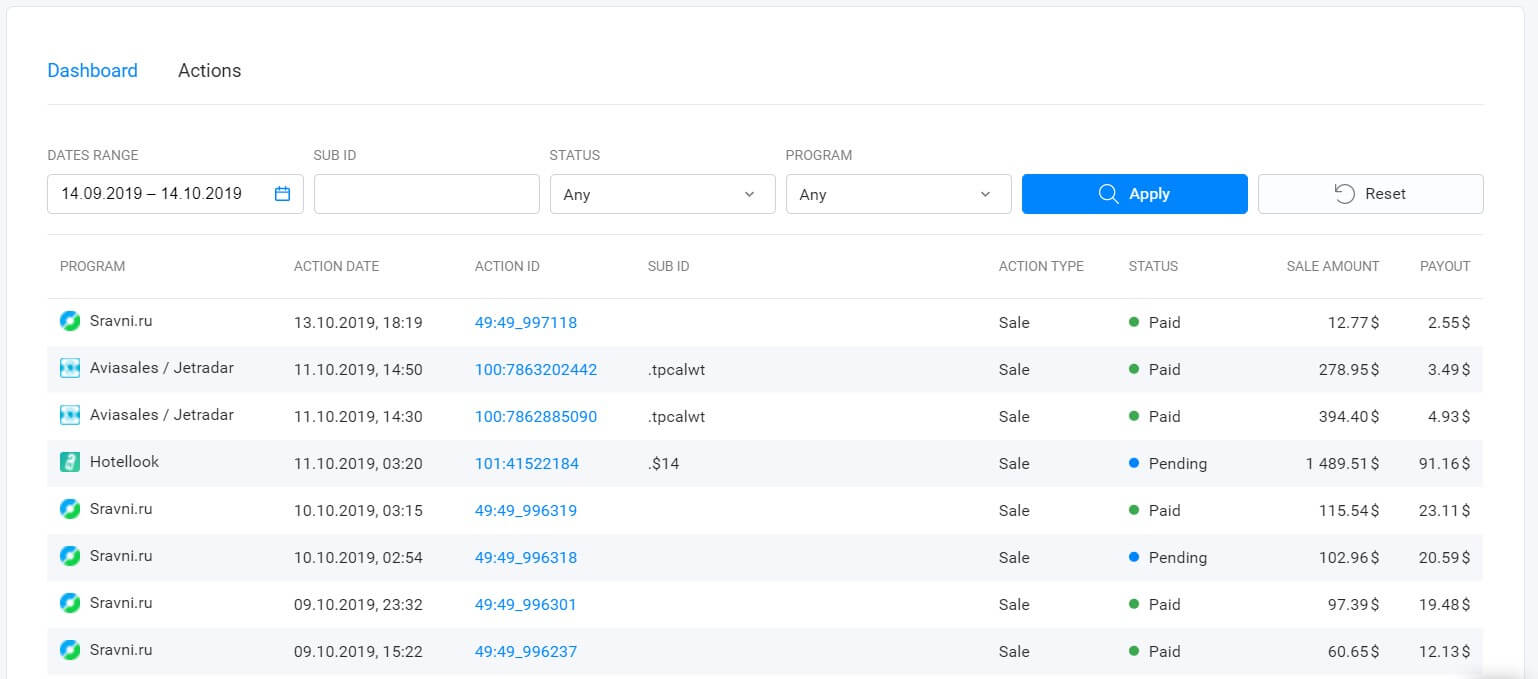
The next menu item in the left-hand sidebar is the “Finances” section. It was the first thing we focused on, and launched a long time ago, provided with a detailed review. As for updates, you can now see the action and update dates (meaning, when the booking status has been changed). Booking updates include its status and sometimes price due to currency devaluations. Learn more about the “Finances” section in our review.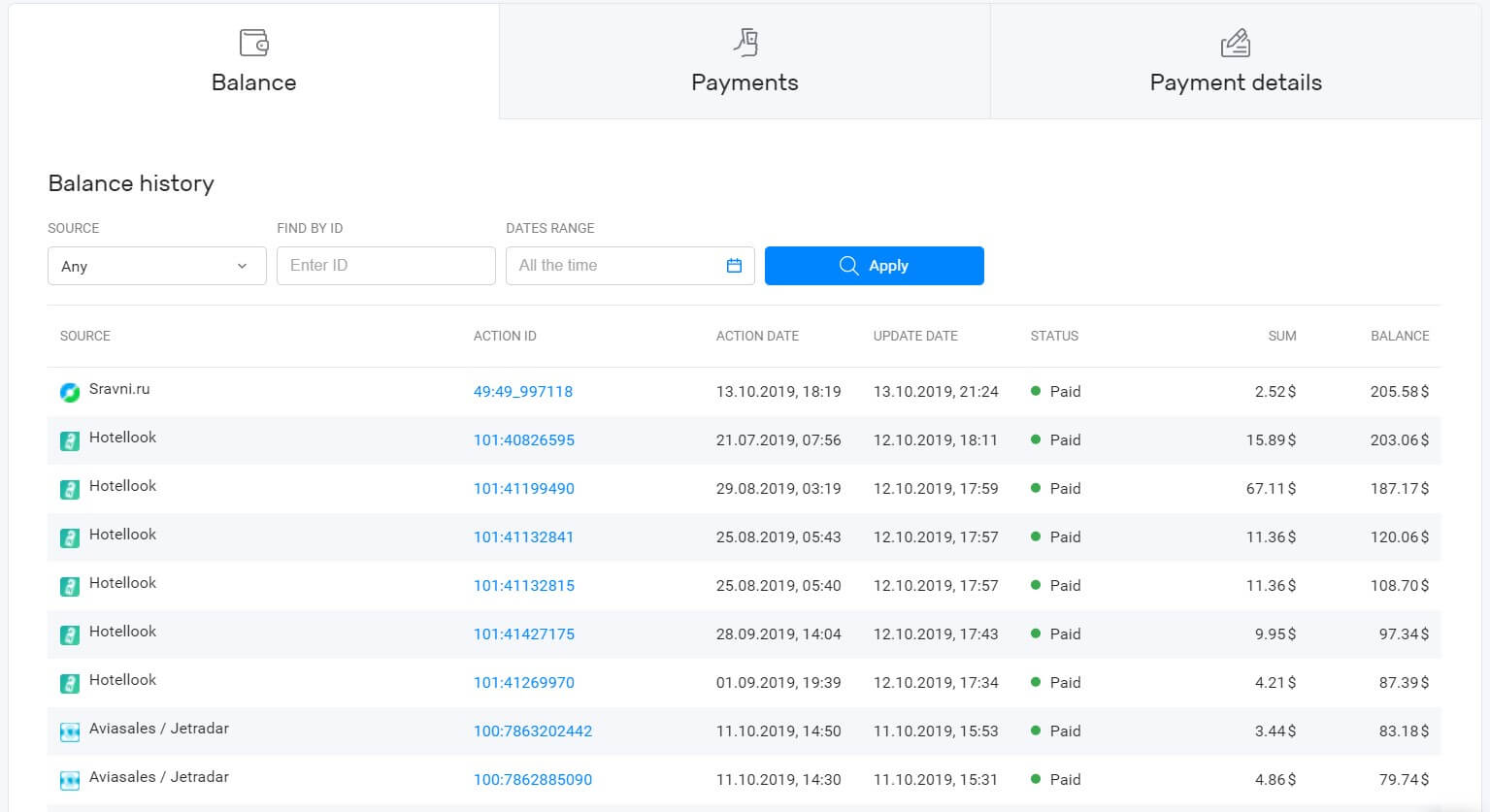
“Reports” Section
“Dashboard” tab in the “Reports” section shows data on all programs: impressions, clicks, cancellations, payments, income and more. By default, the tab shows data for the last 30 days, but you can configure it.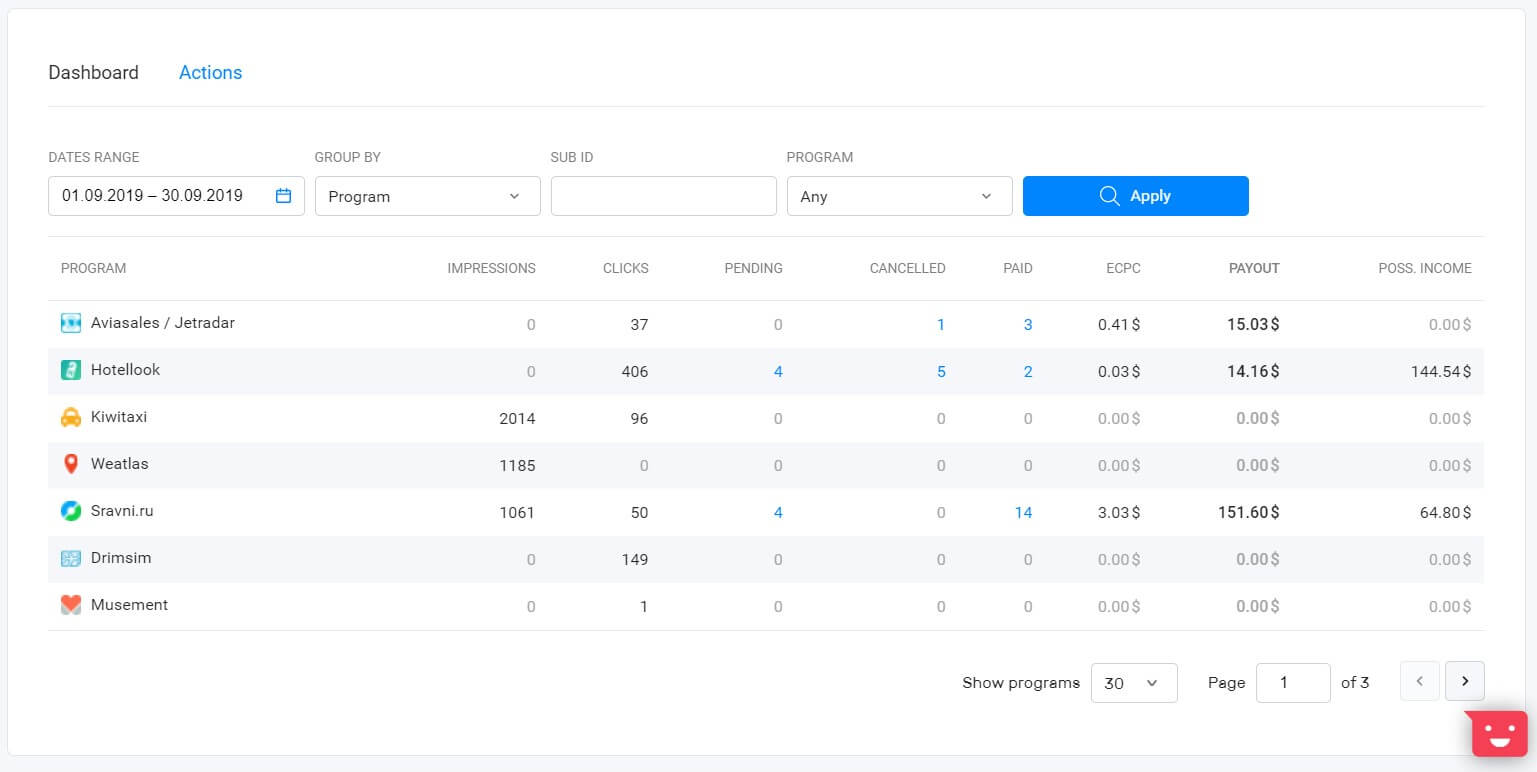
Program Catalog
The biggest change was implemented in regard to Aviasales and Hotellook: from now on, they will be shown in the program catalog on equal terms with other advertisers. All the tools such as links, widgets, and White Label are placed on Aviasales and Hotellook program pages. You can find reports on the program page in the “Reports” section, containing data on all the programs.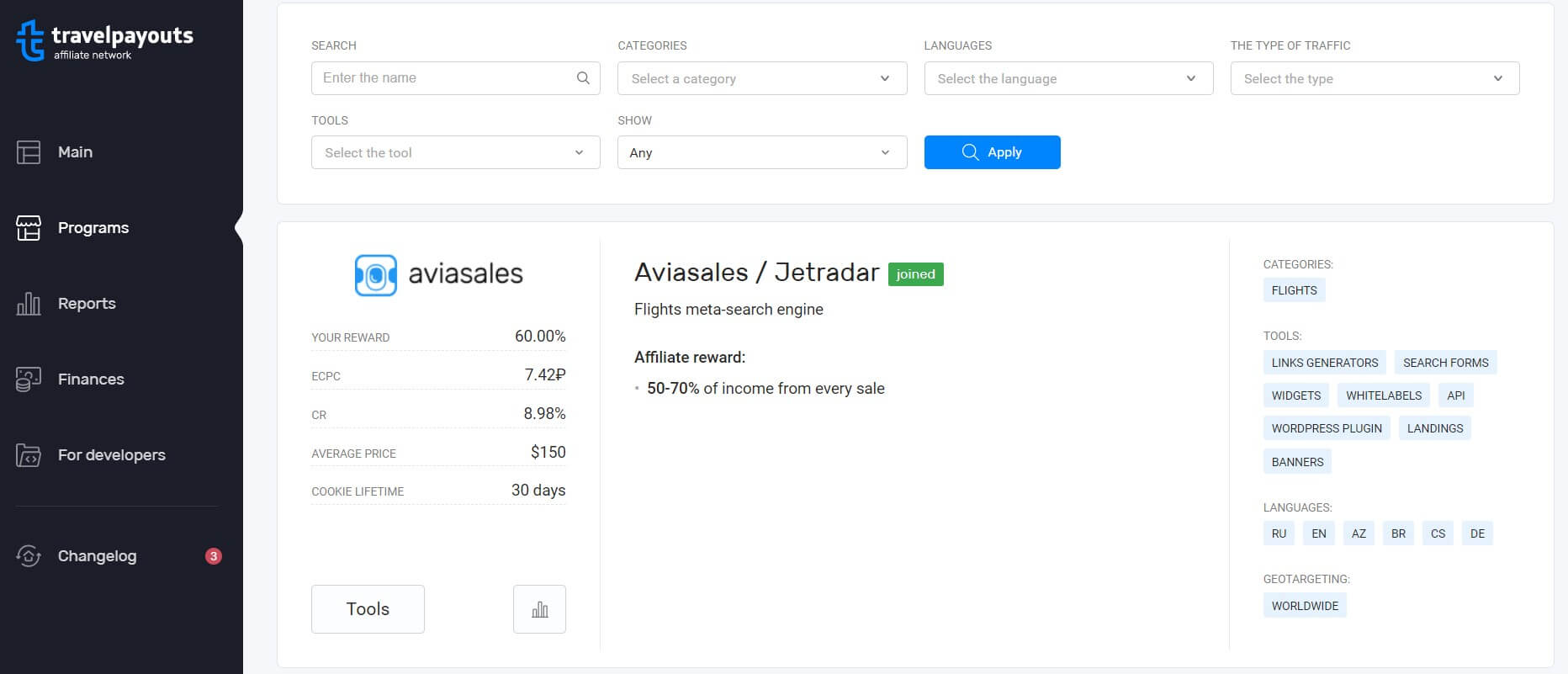
More About Catalog
Hooray! Now you can search programs by specifying the program name and be able to find its card. For now, it only works if you write the full name, but the system will soon be able to recognize synonyms.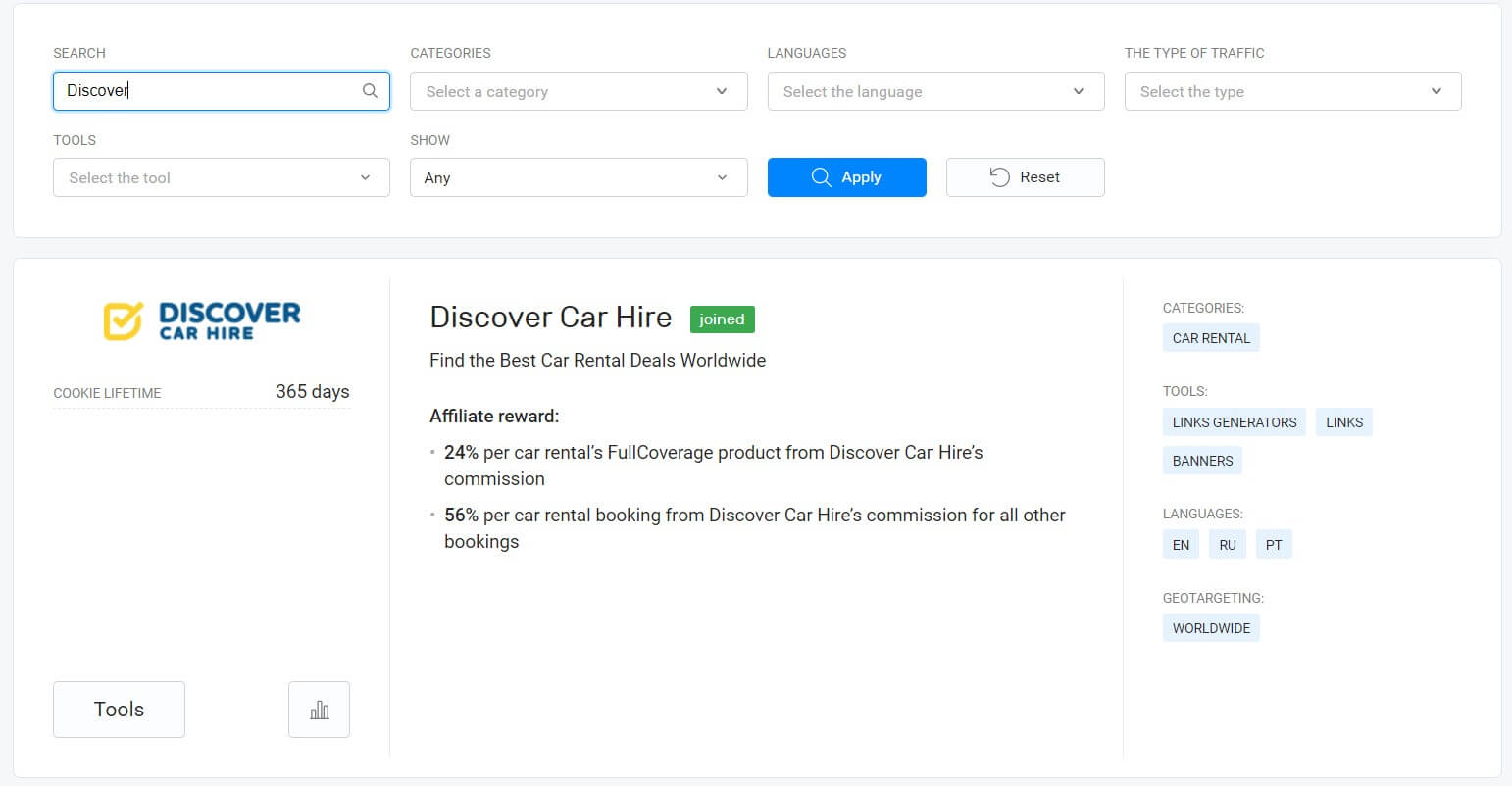
FAQ
Here, we gathered all the questions that you might have. We hope that this review and FAQ will help you easily navigate your personal account.- Where are all the tools for Aviasales and Hotellook? Now, all tools for Aviasales and Hotellook are on the programs’ pages, in the same manner as tools of other advertisers. We didn’t remove anything, just changed the structure to make the personal account more comfortable.
- How can I delete irrelevant programs from the balance and statistics tables? It isn’t possible now, but this option will be added soon. Look through all the programs and maybe some of them will appear interesting.
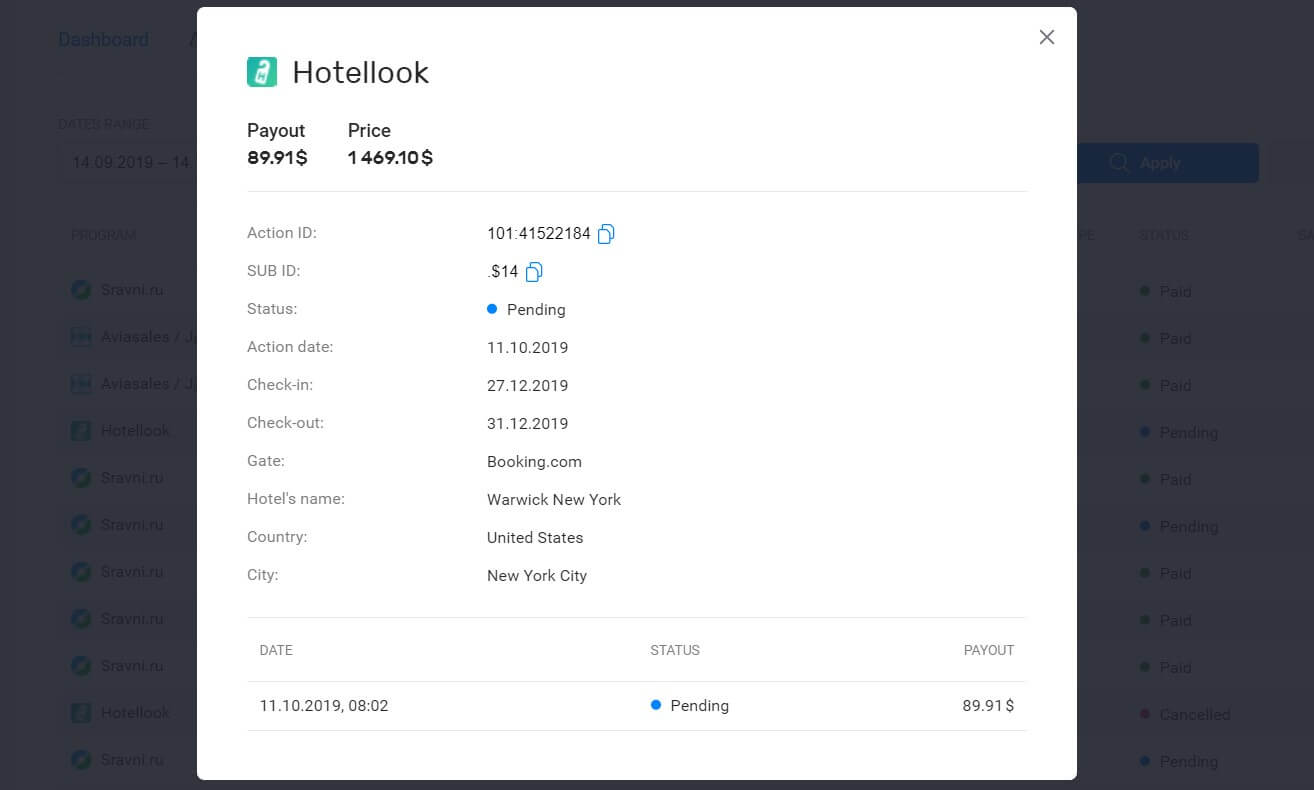
- How can I check the booking details, for example, the name of the hotel? In the old personal account version, you’d need to open the income report. Now you can see booking details in an action report or by clicking on the action ID in the “Finances” section. We’ll soon add these details to the table to save your time.
- Where is the “Summary” tab and statistics on offers? You can find statistics on any offer in the “Reports” section or on your program’s page.
- Where are income reports on Aviasales and Hotellook offers, mobile application downloads and popular Aviasales destinations? You can find these reports on the Aviasales and Hotellook offer pages.
- Where can I find reports on referrals? Reports on referral income are in your profile now.
- What is SUB ID and what it’s for? SUB ID is an additional marker that helps you identify which article gave the booking.
- How can I generate an additional marker for tools? Link and search form generators have the “Additional marker” tab. For now, you need to manually edit the code to add SUB ID (additional marker), by adding it to your marker after the dot. For example, 123456.tours123. Later we’ll add an option of specifying SUB ID globally for all the tools and adding it to every generator.
- I don’t like the new personal account, can I use the old version? No, the new version is the only version available, and it is much more comfortable. Try to explore it and don’t hesitate to ask questions. It is going to be fine 🙂

You may also be interested in